My top 3 AI coding tools—and who I recommend them to
My picks for personal projects, enterprise work and building a business. Three different strengths—with T3 Code bringing agents, subscriptions and devices into one simple workflow.
Reviewed
I. Start with what you want to build
A personal project. The next release at work. A business you are building on your own. Those are different ways of working—and they are how I think about my three favourite AI coding tools.
These are my personal recommendations, not hard boundaries around who can use each tool. The useful question is which one fits the way you want to work.
II. ChatGPT Desktop (Codex)
My personal-use allrounderThe “just works” feeling.
ChatGPT Desktop is the one I most naturally associate with personal use. For an idea I want to explore, a small tool or a personal project, this is the allrounder I would point to first.
The appeal is the connection between thinking something through and actually building it. In the desktop app you can start a project or open a folder, then choose ChatGPT or Codex for the work. Codex can work on the project’s files, rather than only hand you code to copy somewhere else.[1][2]
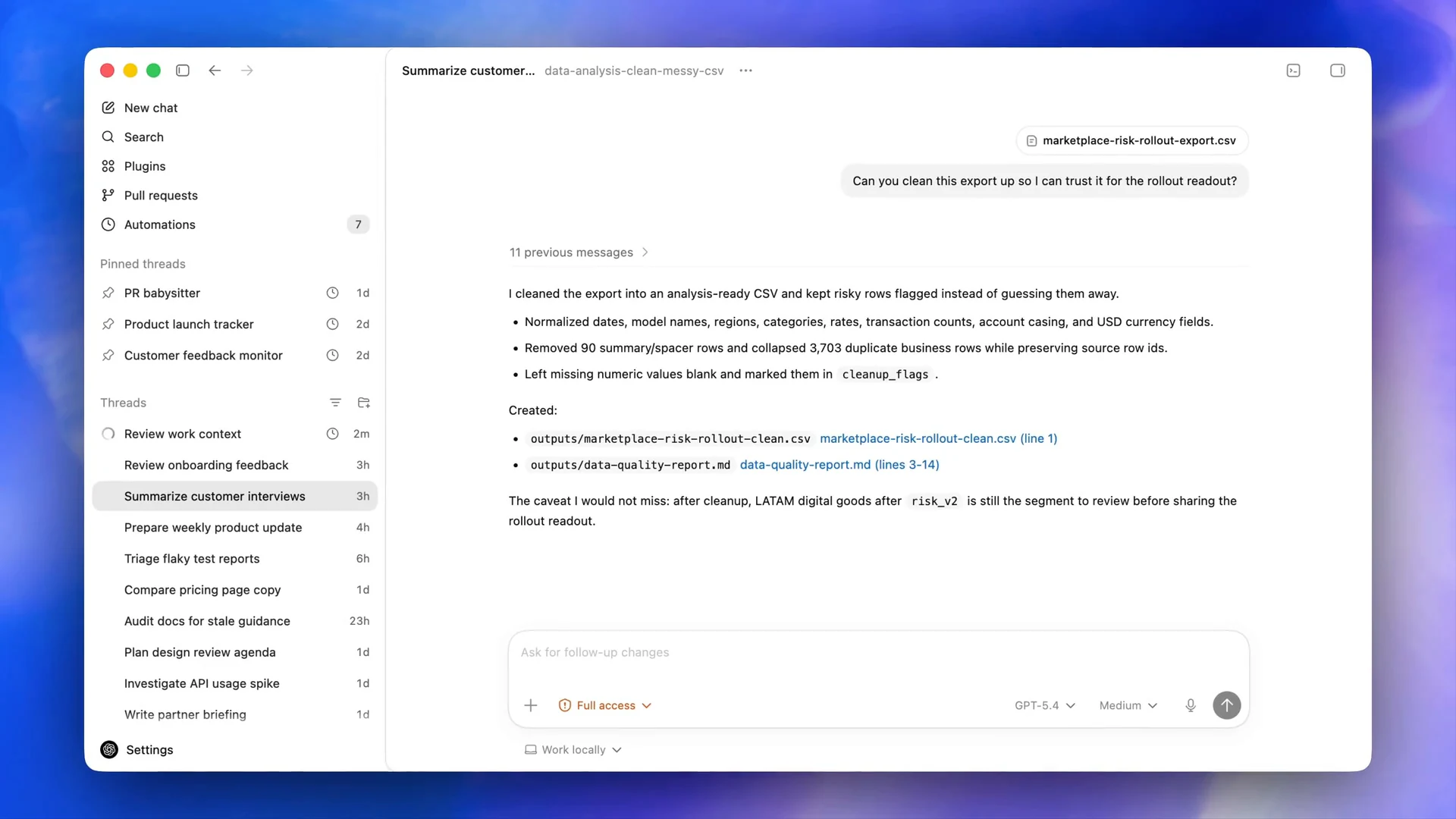
Imagine wanting a small website for a hobby or an automation that saves you a repetitive task. You can begin with what you want to achieve, discuss the idea and move towards something you can try.
That is what “just works” means to me here: a comfortable starting point that does not make the tooling the main event. For personal use, it is my best allrounder.
III. GitHub Copilot App
My enterprise and team-workflow pickDevelopment, planning and automation together.
I mainly see the standalone GitHub Copilot desktop app in an enterprise context: projects with an established GitHub workflow, several people involved and work that needs to be planned, tracked and reviewed.
Its native GitHub integration brings tasks, project repositories, proposed changes and automated checks into the app. You can pick up an issue—a tracked task—and follow the work through to a pull request, the proposed change you review before accepting.[3]
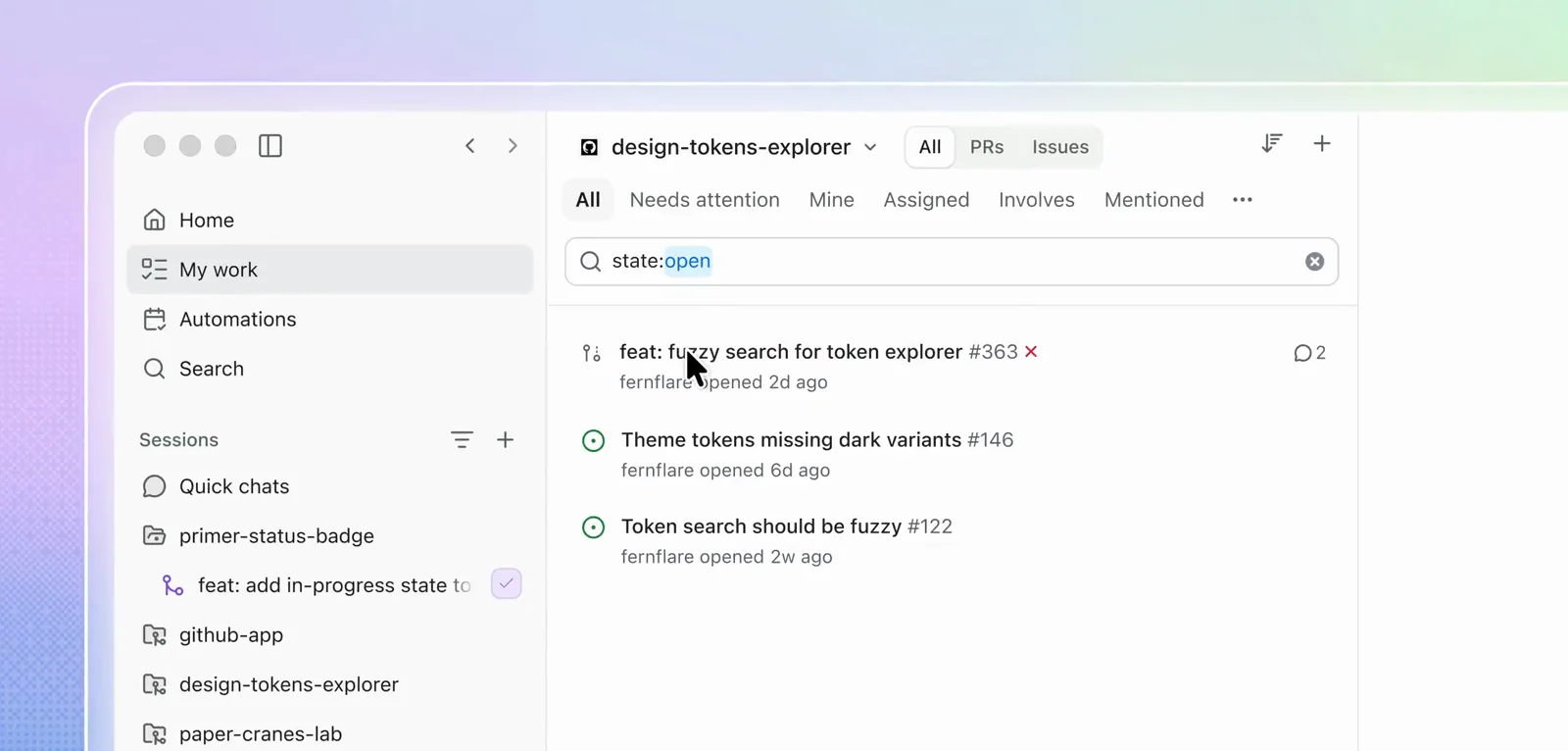
It is also about project planning and automation, not just writing code. Plan mode lets an agent work out an approach for you to approve. Recurring agent tasks can run on a schedule or on demand.[3] I see that as a useful combination for turning a growing task list into organised work.
For me, that is the best integrated development experience: the planning, implementation and review stay close together. It is not restricted to large companies; that same structure is useful wherever GitHub is already the centre of the project.
Explore the GitHub Copilot app ↗
IV. T3 Code
My founder and solo-developer pickOne to rule them all.
T3 Code is the tool on this list that excites me most. I see it in personal use too—but especially when that grows into a startup, freelance work or several development projects of your own. It has exactly the independent, entrepreneurial feeling I want: plenty of power, without giving up flexibility.
The starting point is simple: connect the accounts behind the subscriptions you already have, open a project and get going. T3 Code brings Claude Code, Codex, Antigravity, OpenCode, Cursor and Grok into one workspace. You keep your existing provider plans.[5]
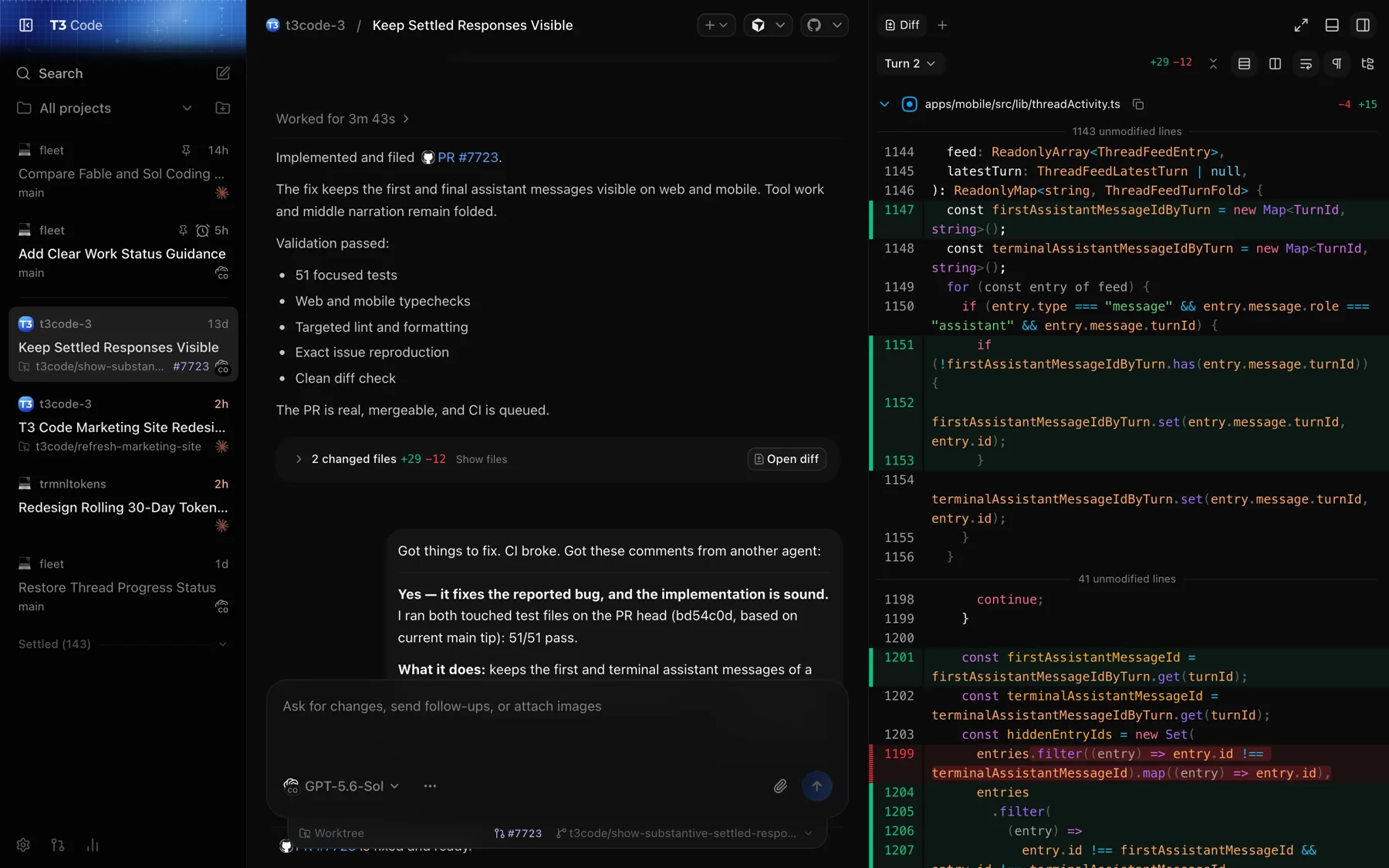
Powerful does not have to mean complicated. The overview is clear and the everyday controls are easy to use. Whichever agent I choose, I work in the same interface. I do not have to keep each agent’s individual menus, commands and workflow quirks in my head.
Two things make that experience particularly good for me:
Performance. In my day-to-day use, T3 Code feels exceptionally fast and responsive. That matters when I am moving between several projects: the interface helps me stay with the work instead of interrupting it.
Continuity across devices. Moving between my phone and different computers feels remarkably seamless. The device and the harness stop being the things I organise my work around. The project becomes the constant.
I have never used a setup where it mattered so little which device I was on or which harness I was using. It just works—and I can focus on the projects I want to build.
That continuity has a practical foundation: T3 Connect lets you open the same connected working environment from another device.[6] And the workflow goes beyond the conversation: reviewing code changes, committing, pushing and opening a GitHub pull request are available in the interface.[5]
What is the control plane—and what connects the devices?
The coding agents do the work; T3 Code is where you direct and organise it. An agent’s harness gives it access to files, tools and commands. The control plane brings those working environments together.
For remote work, enable T3 Connect on the computer running the environment, then sign in on your other device and choose it. That host computer needs to stay running and reachable.[6]
For founders, freelancers and solo developers, this is the combination I recommend most enthusiastically: existing subscriptions, freedom to choose an agent, multiple projects and a consistent way of working across devices.
“One to rule them all” describes the whole experience for me. Not just choosing an AI, but bringing the work together—so I can spend my attention on what I am building.
Sources
- OpenAI · ChatGPT desktop app: projects, folders and choosing ChatGPT or Codex
- OpenAI · Codex in ChatGPT: coding workflows and plan availability
- GitHub Docs · About the standalone GitHub Copilot app
- GitHub · Copilot app product page and official walkthrough
- T3 Code · Supported harnesses, bring-your-own subscription and workflow
- T3 Code · Remote access and T3 Connect across devices
Sources checked 2026-09-22.